![Planit_Master_Logo_PMS_Tagline-01 ES-1.png]](https://help.planitaustralia.com.au/hs-fs/hubfs/Planit_Master_Logo_PMS_Tagline-01%20ES-1.png?height=43&name=Planit_Master_Logo_PMS_Tagline-01%20ES-1.png)
Part 2: Getting your computer ready for installation
Part 3: Installing CABINET VISION
PART 1: DOWNLOAD
Step 1
Log into your Hexagon Customer Portal and navigate to the Downloads Tab and select Software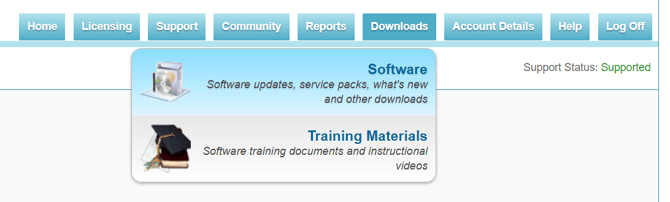
Step 2
Download both the Language Pack & Primary Setup for the latest Version & Build. Video available here 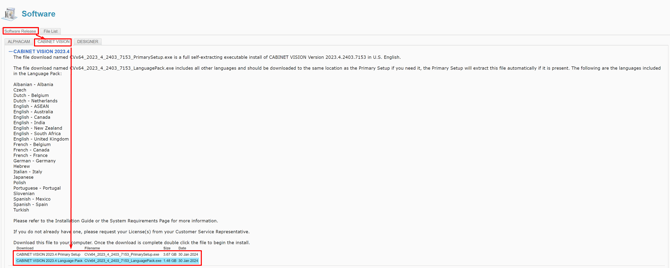
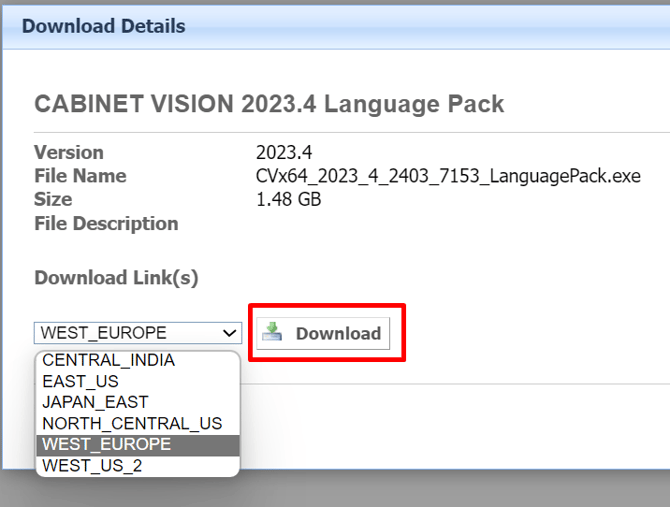
Note: The "Download Link(s)" location does not matter -
This is just the Hexagon server location where you are downloading the files from,
The contents of files are the same.
PART 2: GET YOUR COMPUTER READY TO INSTALL CABINET VISION
Additional Information:
Nexus Community Installation Best Practices
Step 1
Ensure your computer meets the Minimum System Requirements.
Step 2
Turn UAC - User Account Controls to the lowest setting.
Adjusting this setting reduces the "pop up warnings" generated by windows.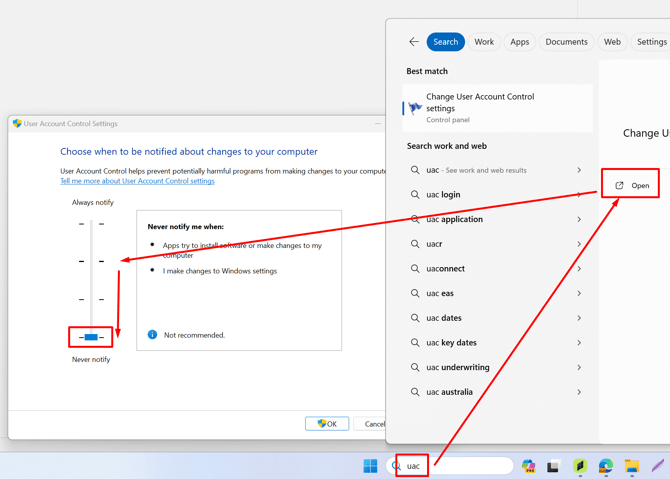
Step 3
Check for Windows Updates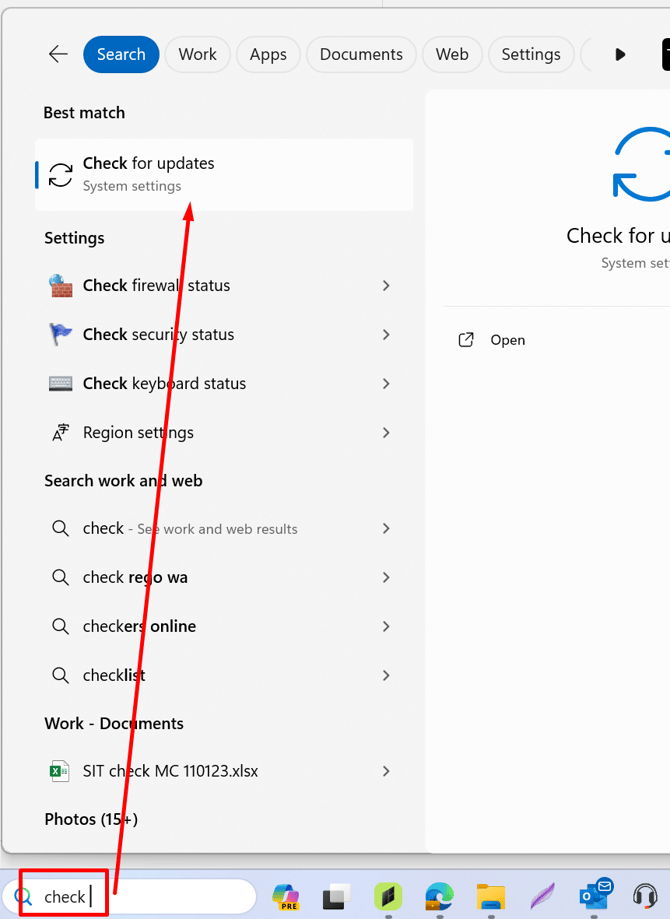

Including "Optional updates" & "other Microsoft products" Under "Advanced options"
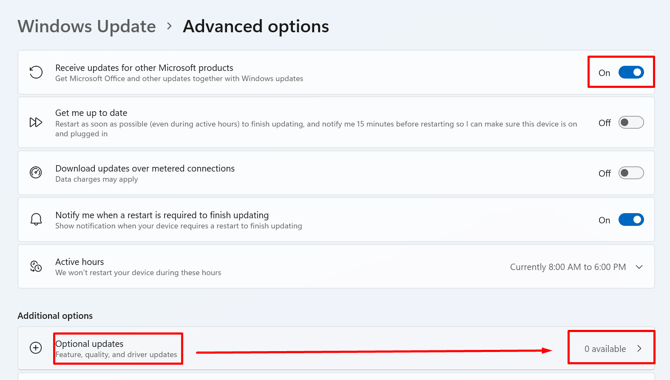
Step 4
Restart computer & Check for updates again
Step 5
Disable/Snooze/Turn off Antivirus & Firewall
Below screenshots are Windows Antivirus -
If you have 3rd Party Antivirus software its important its is Disabled/Snoozed/Turned off for the duration of installation.
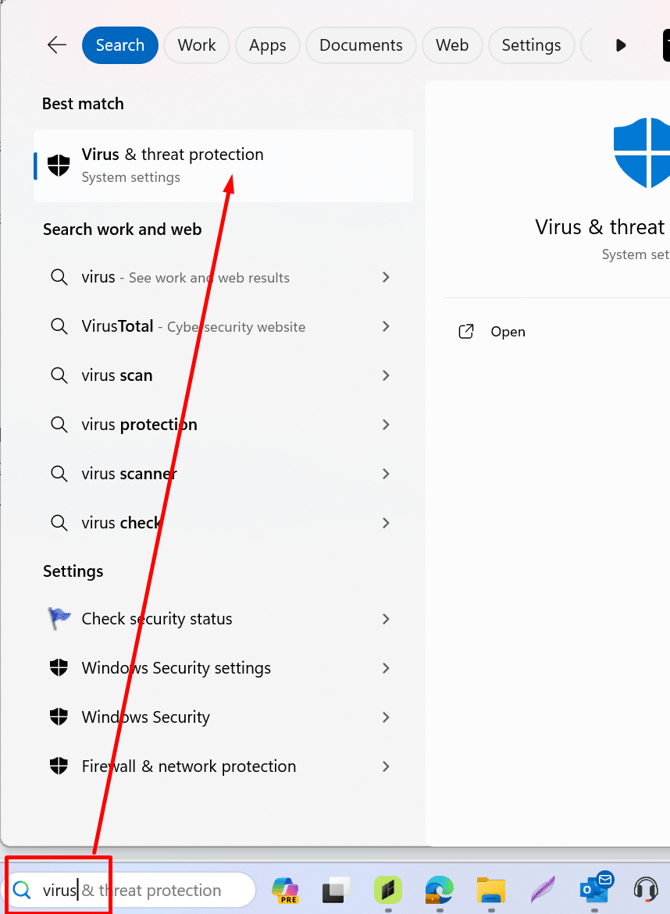
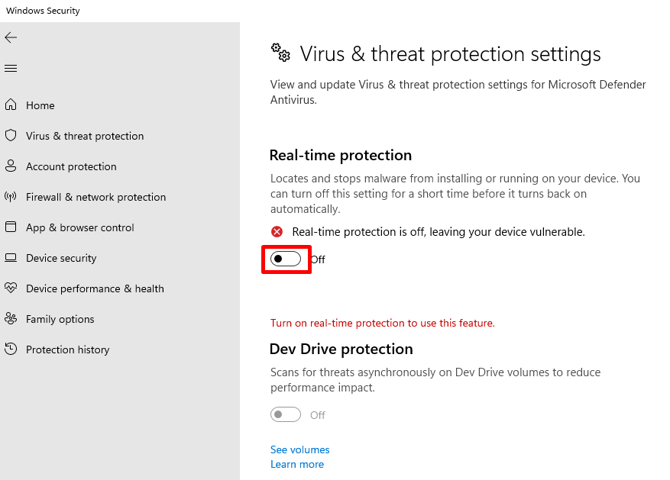
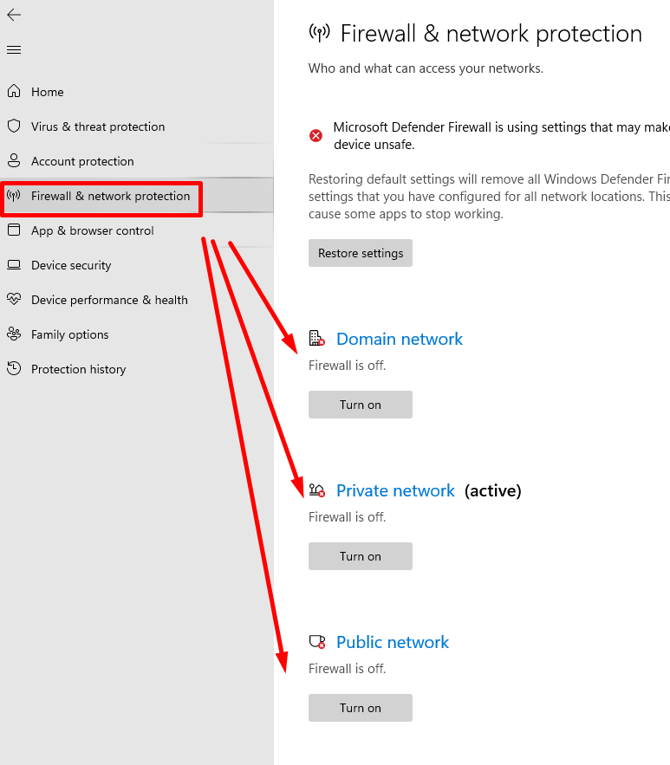
With Antivirus turned off please do not browse the internet or open any email attachments.
PART 3: INSTALLING OF CABINET VISION
Step 1
Extract the Language Pack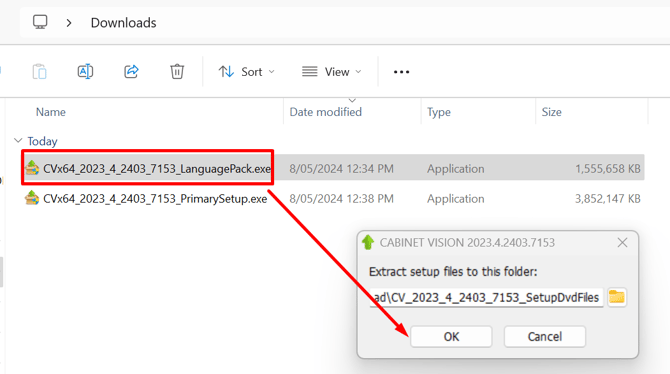
From 2023: The Primary Setup will automatically be extracted, as long as the Primary Setup is located in the same folder.
Step 2
Ensure the English(Australia) Option is selected and
select Launch the Installation Wizard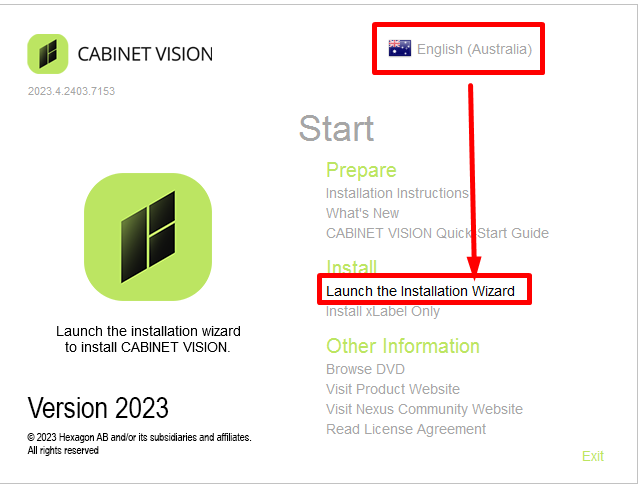
Additional Information from Hexagon Community is available under Installation Best Practices
& Also Installation Instructions as part of the installation wizard 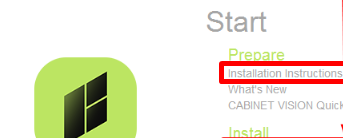
For The remainder of the Installation wizard select the options which suit your requirements.
If you are migrating your database from a previous version then select Yes to import data from a previous version.
Note Screen 2 Machine is separate software and will be installed after CABINET VISION.
When installation complete restart computer as per installation wizard requirements.
IMPORTANT: REMEMBER TO TURN ON ANTI-VIRUS AND FIREWALL
Related:
What is the Hexagon Customer Portal?
How do I find my CABINET VISION version/build number?
How do I INSTALL Standalone Keyless License?