![Planit_Master_Logo_PMS_Tagline-01 ES-1.png]](https://help.planitaustralia.com.au/hs-fs/hubfs/Planit_Master_Logo_PMS_Tagline-01%20ES-1.png?height=43&name=Planit_Master_Logo_PMS_Tagline-01%20ES-1.png)
Ensure that your License is available. You can check the status of your companies CABINET VISION Licenses at the Hexagon Customer Portal: https://customers.ps.hexagonmi.com/Site/Licencing/Config.aspx
If it has a Lock Code it is currently Installed
If it is installed on another PC you will need to revoke it prior to following this guide: How do I REVOKE Standalone Keyless Licence?
Step 1
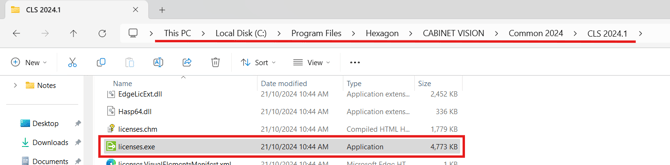
Find and open the license manager, you will find it in a similar file location to
C:\ Program Files \ Hexagon \ CABINET VISION \ Common 2024 \ CLS 2024.1 \
Or if you have had an installation as part of Planit+ you will have a shortcut on your desktop
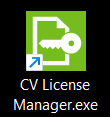
Double click to launch the Application.
Step 2
If you have The License Manager before, it will show the last license installed.
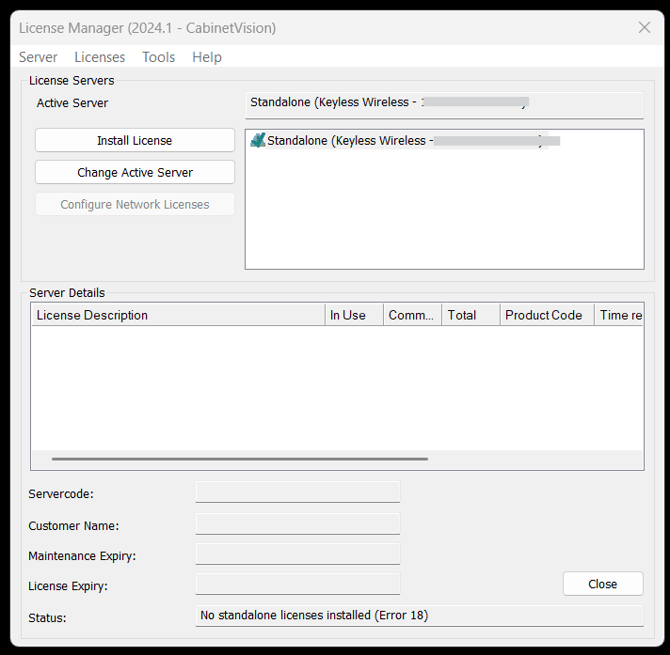
Step 2 Method 1: Renewing License
If you are just renewing the License, you can simply click on your License to select it, and then click "Install License"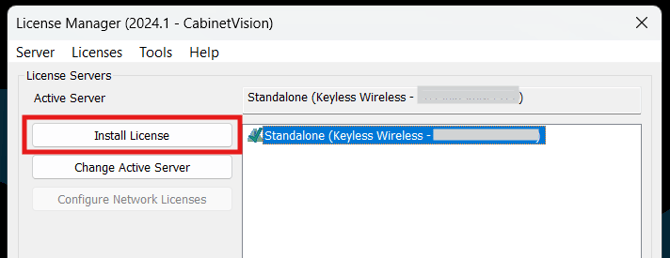
Step 2 Method 2: Changing License
If you would like to Install a License other than one already visible, click on Server in the top left, and then select Search Standalone from the drop down menu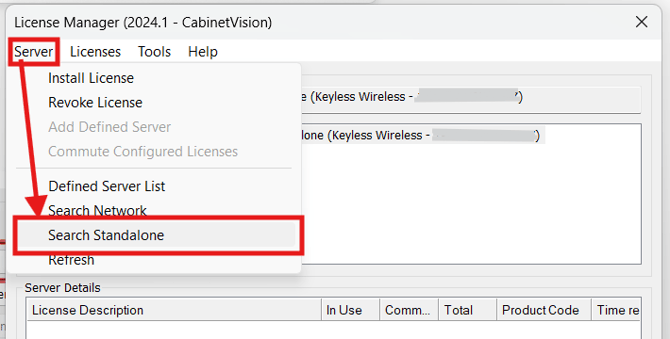
This will bring up all available locking options
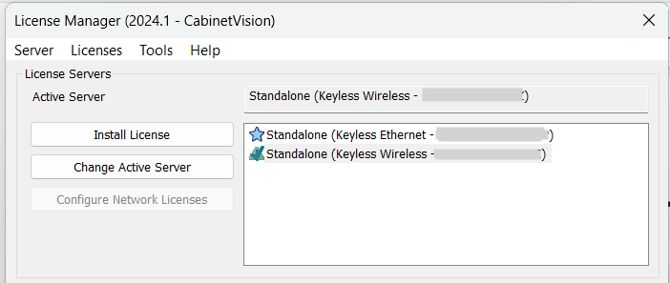
There are several locking options. The lock code created (Greyed out in this image) will depend on several factors including the internet connection. If you are changing your internet connection you will want to Revoke and Install as necessary to make sure the Locking method stays current. Will appear next to each available License option
 Will indicate that the License Locking method and
 Will indicate the License Locking method is available but not installed.
 Will indicate that a License is successfully installed
To Install the License click the Ethernet or Wireless option, depending on your internet connection, which can be seen in the bottom right corner of your screen, on the far right of the system tray means a wired connection. Select (Keyless Ethernet-***************)
 means a wireless connection. Select (Keyless Wireless-***************)
Step 3
Click to select Install License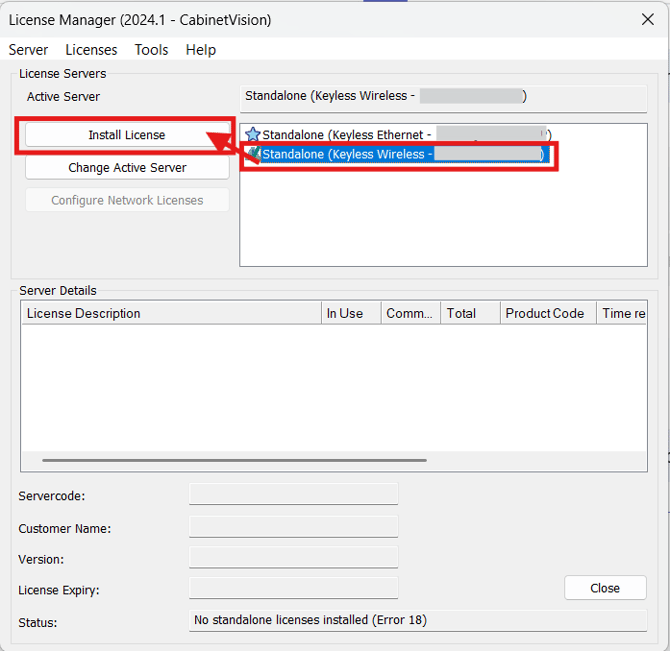
This will bring up a window to add your License details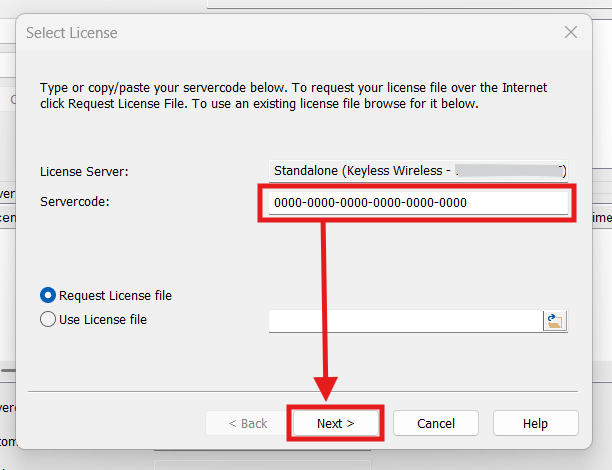
Step 4
You can find your license details via the Hexagon Customer Portal: https://customers.ps.hexagonmi.com/Site/Licencing/Config.aspx
or they may have been emailed to you by your Planit Australia Account Manager
Enter your 24 digit Servercode in the space provided and click "Next >"
The next page you can confirm your License detials
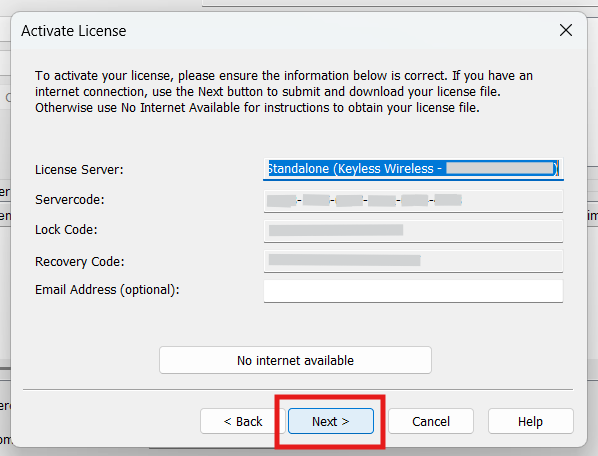
Click "Next >" to begin the process
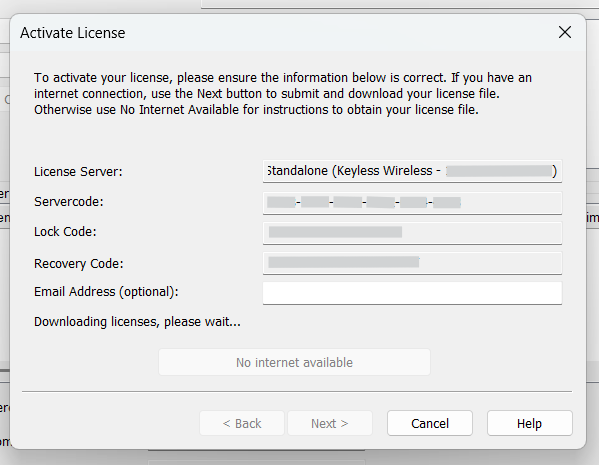
Downloading licenses, please wait...
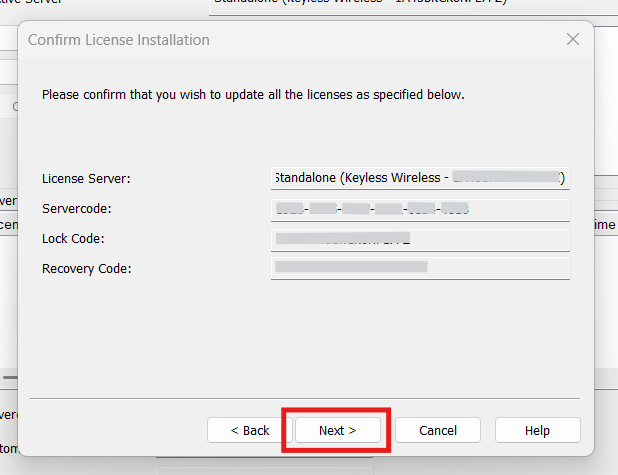
Step 5
The last screen will confirm the Licence installation was successful.
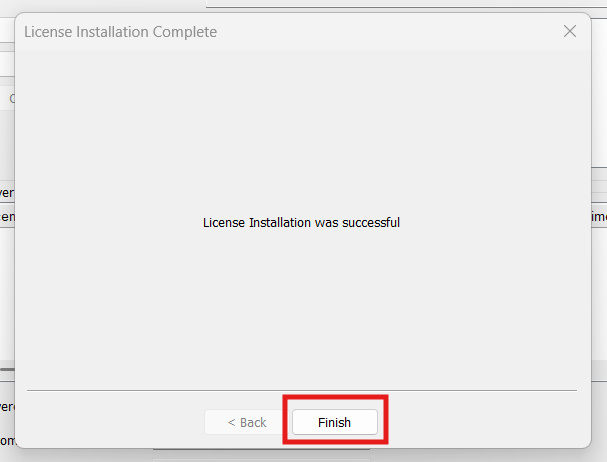
Click Finish to end the process. Your License is successfully installed with any new details.
Further License troubleshooting ideas can be viewed on Hexagons Nexus Knowledgebase: https://nexus.hexagon.com/community/cabinet_vision/w/cv_wiki/3531/cls-licensing-issues
If you are not able to follow any step of this guide or further assistance is required please contact Helpdesk